 English
My Maintenance · 0.6.44 · Windows & Android
Set up your own Cloudflare sync
An illustrated walkthrough for My Maintenance 0.6.44 on Windows and Android. Cloud sync is optional. Your app and local backups work without it. The pictures show Cloudflare’s English interface; account details have been cropped out. Example names can differ from your own.
Steps
01 / 11
Activate R2 and check the costs
Sign in to Cloudflare. Open Storage & databases → R2 Object Storage. If asked, activate the R2 subscription and review the checkout yourself. R2 includes a monthly free allowance, but activation can require payment details and usage above the allowance can be billed. Check the current R2 and Workers prices and set account usage alerts. My Maintenance itself is free.
02 / 11
Create a private bucket
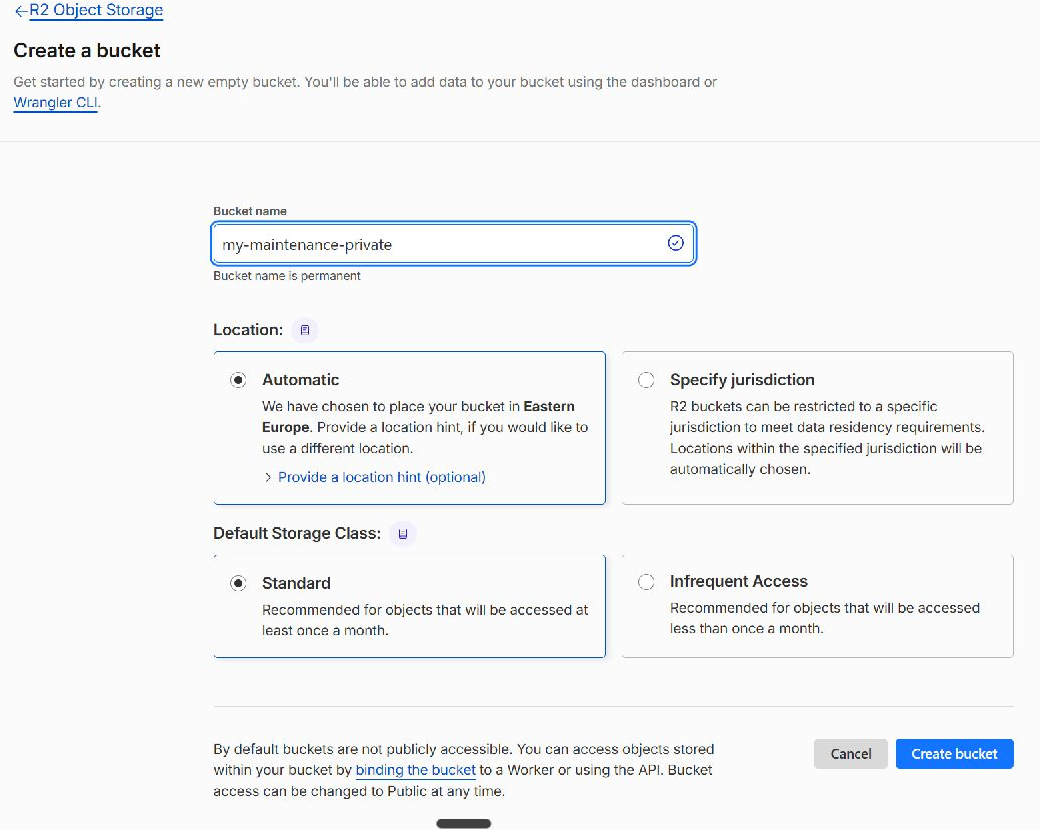
In R2, choose Create bucket. Use my-maintenance-private as an example name, select Standard storage and choose the region or jurisdiction appropriate for your data. Press Create bucket. Keep public access disabled: do not enable r2.dev public access or attach a public custom domain. You will select this same bucket in step 5.
03 / 11
Create the Worker
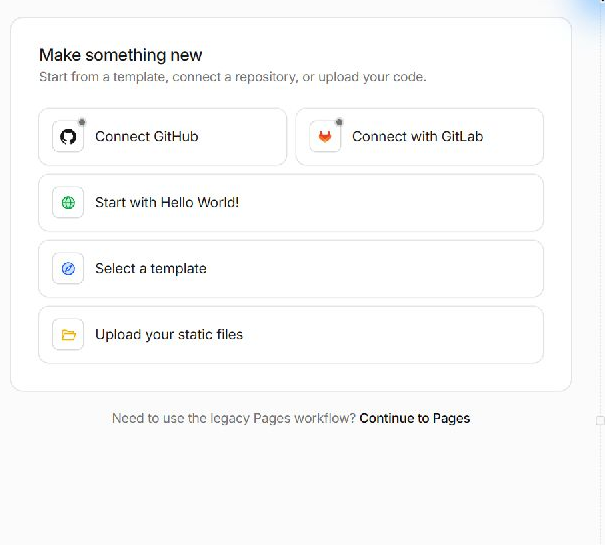
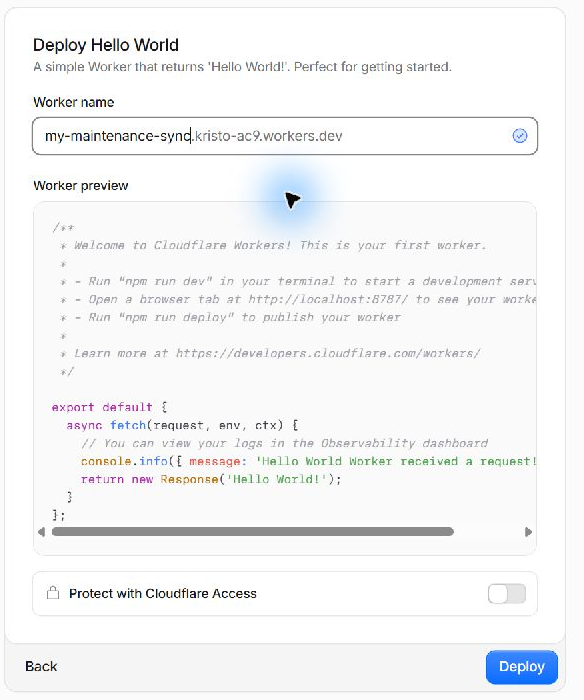
Open Compute → Workers & Pages → Create application. Choose Start with Hello World! Enter a unique Worker name, for example my-maintenance-sync, and press Deploy. Leave Protect with Cloudflare Access off: this app authenticates with its own private key. This creates the initial service; it does not yet contain the sync code.
04 / 11
Install the My Maintenance code
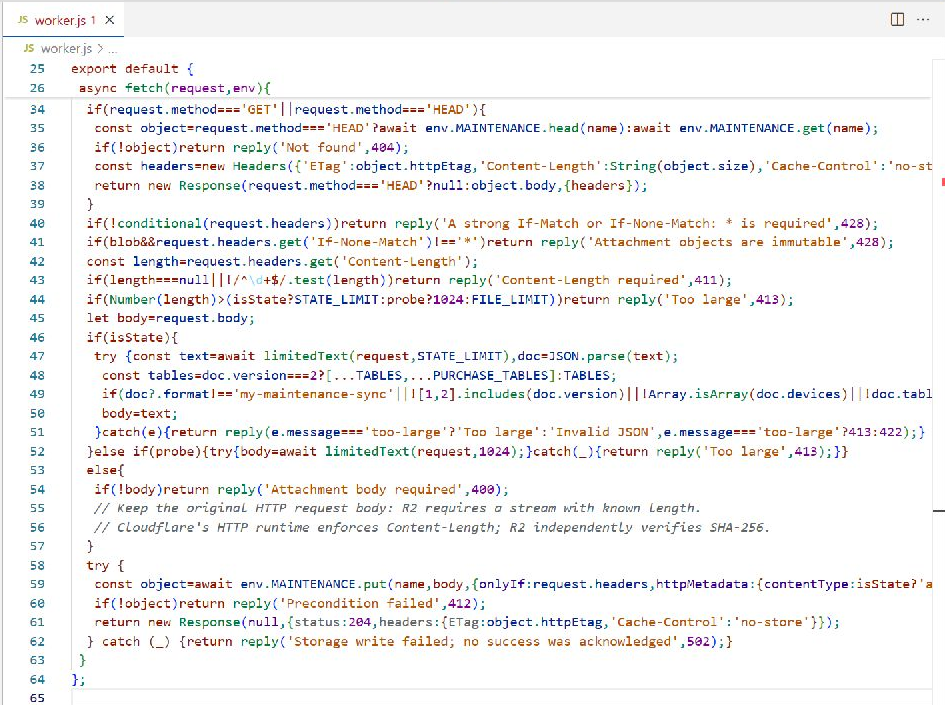
Download the Worker code below. Open the new Worker and choose Edit code. Open worker.js, select all of the starter code and replace it with the complete contents of the downloaded file. Do not add a key to the code. Press Deploy. A bare browser preview can say Unauthorized until the app sends its key; this is expected.
Show Worker code
// Deploy into YOUR Cloudflare account. The R2 bucket must remain private.
const STATE='maintenance-state-v1.json';
const TABLES=['object_types','properties','maintenance_plans','spare_parts','maintenance_history','attachments'];
const PURCHASE_TABLES=['purchase_categories','purchased_products','purchase_attachments'];
const STATE_LIMIT=16*1024*1024,FILE_LIMIT=50*1024*1024;
const reply=(message,status=400)=>new Response(message,{status,headers:{'Cache-Control':'no-store','Content-Type':'text/plain; charset=utf-8'}});
async function authorized(request,secret){
 if(typeof secret!=='string'||secret.length<32)return false;
 const supplied=request.headers.get('Authorization')||'';
 if(!supplied.startsWith('Bearer ')||supplied.length>1024)return false;
 const hash=async s=>new Uint8Array(await crypto.subtle.digest('SHA-256',new TextEncoder().encode(s)));
 const [a,b]=await Promise.all([hash(supplied.slice(7)),hash(secret)]);let different=0;for(let i=0;i<32;i++)different|=a[i]^b[i];return different===0;
}
async function limitedText(request,limit){
 const reader=request.body?.getReader();if(!reader)return '';
 let total=0;const chunks=[];
 try{while(true){const {done,value}=await reader.read();if(done)break;total+=value.length;if(total>limit){await reader.cancel();throw new Error('too-large')}chunks.push(value);}}finally{reader.releaseLock();}
 const bytes=new Uint8Array(total);let offset=0;for(const chunk of chunks){bytes.set(chunk,offset);offset+=chunk.length;}return new TextDecoder('utf-8',{fatal:true}).decode(bytes);
}
function conditional(headers){
 const match=headers.get('If-Match'),none=headers.get('If-None-Match');
 if(none==='*'&&!match)return true;
 return !!match&&!none&&/^"[^"\r\n]+"$/.test(match);
}
export default {
 async fetch(request,env){
  if(!await authorized(request,env.SYNC_TOKEN))return reply('Unauthorized',401);
  const url=new URL(request.url),name=url.pathname.slice(1),isState=name===STATE;
  const blob=/^blob-([a-f0-9]{64})\.bin$/.exec(name);
  const probe=/^sync-probe-[a-f0-9]{64}\.json$/.test(name);
  if(url.search||(!isState&&!blob&&!probe))return reply('Not found',404);
  if(probe&&request.method==='DELETE'){await env.MAINTENANCE.delete(name);return new Response(null,{status:204});}
  if(!['GET','HEAD','PUT'].includes(request.method))return reply('Method not allowed',405);
  if(request.method==='GET'||request.method==='HEAD'){
   const object=request.method==='HEAD'?await env.MAINTENANCE.head(name):await env.MAINTENANCE.get(name);
   if(!object)return reply('Not found',404);
   const headers=new Headers({'ETag':object.httpEtag,'Content-Length':String(object.size),'Cache-Control':'no-store','Content-Type':isState?'application/json':'application/octet-stream','X-Content-Type-Options':'nosniff'});
   return new Response(request.method==='HEAD'?null:object.body,{headers});
  }
  if(!conditional(request.headers))return reply('A strong If-Match or If-None-Match: * is required',428);
  if(blob&&request.headers.get('If-None-Match')!=='*')return reply('Attachment objects are immutable',428);
  const length=request.headers.get('Content-Length');
  if(length===null||!/^\d+$/.test(length))return reply('Content-Length required',411);
  if(Number(length)>(isState?STATE_LIMIT:probe?1024:FILE_LIMIT))return reply('Too large',413);
  let body=request.body;
  if(isState){
   try {const text=await limitedText(request,STATE_LIMIT),doc=JSON.parse(text);
    const tables=doc.version===2?[...TABLES,...PURCHASE_TABLES]:TABLES;
    if(doc?.format!=='my-maintenance-sync'||![1,2].includes(doc.version)||!Array.isArray(doc.devices)||!doc.tables||Object.keys(doc.tables).sort().join()!==[...tables].sort().join()||tables.some(t=>!Array.isArray(doc.tables[t])))return reply('Invalid maintenance document',422);
    body=text;
   }catch(e){return reply(e.message==='too-large'?'Too large':'Invalid JSON',e.message==='too-large'?413:422);}
  }else if(probe){try{body=await limitedText(request,1024);}catch(_){return reply('Too large',413);}}
  else{
   if(!body)return reply('Attachment body required',400);
   // Keep the original HTTP request body: R2 requires a stream with known length.
   // Cloudflare's HTTP runtime enforces Content-Length; R2 independently verifies SHA-256.
  }
  try {
   const object=await env.MAINTENANCE.put(name,body,{onlyIf:request.headers,httpMetadata:{contentType:isState?'application/json':'application/octet-stream'},...(blob?{sha256:blob[1]}:{})});
   if(!object)return reply('Precondition failed',412);
   return new Response(null,{status:204,headers:{ETag:object.httpEtag,'Cache-Control':'no-store'}});
  } catch (_) {return reply('Storage write failed; no success was acknowledged',502);}
 }
};
05 / 11
Connect the private bucket
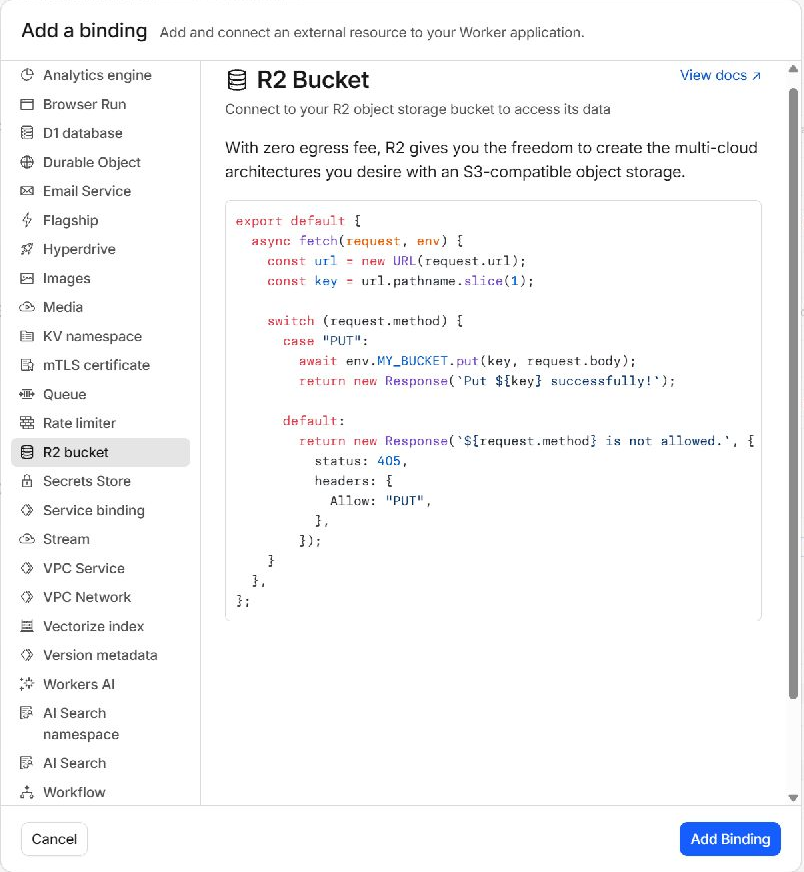
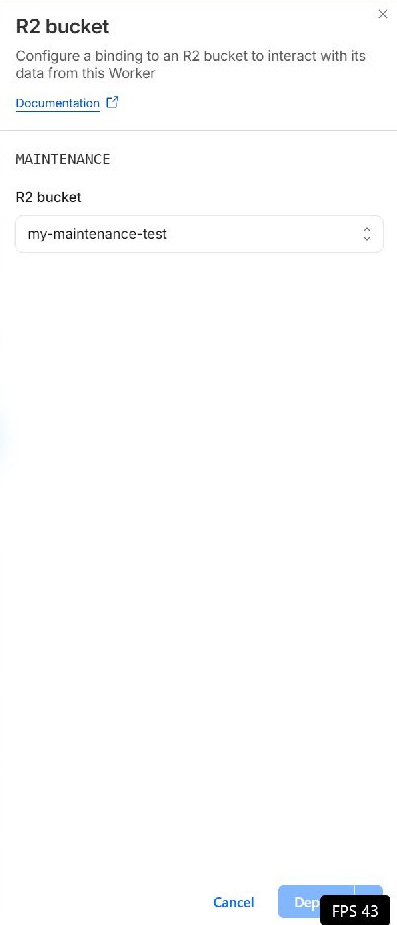
Open the Worker’s Settings → Bindings → Add binding. Choose R2 Bucket and Add Binding. Set Variable name to MAINTENANCE, exactly in capitals, and choose the private bucket from step 2. Press Deploy. If you see a duplicate-name error, edit the existing MAINTENANCE binding rather than adding another one. The illustration uses a test bucket; choose your own.
06 / 11
Create and save the private key
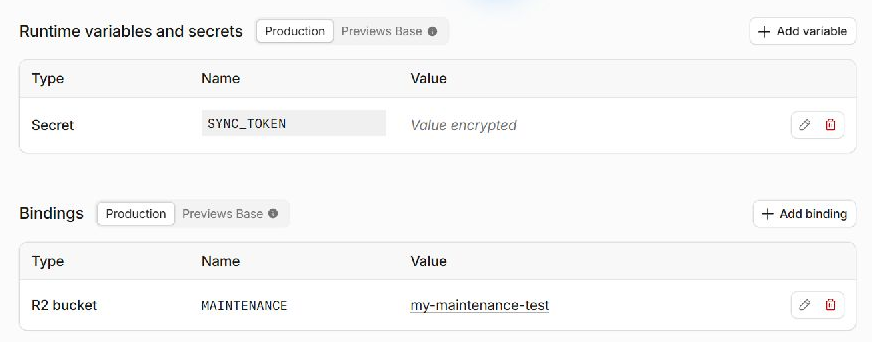
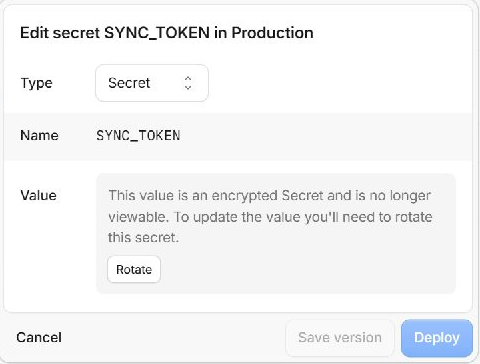
Generate a strong random key of at least 32 characters, or use the local generator below. Save it in your password manager. In Worker Settings → Runtime variables and secrets, choose Add variable, set Type to Secret and Name to SYNC_TOKEN. Paste the key as Value and press Deploy. Cloudflare hides it after saving, so keep your own safe copy. This is an app access key, not a Cloudflare account API token.
07 / 11
Copy the Worker address
Open the Worker’s Overview and copy its public HTTPS workers.dev address, such as https://my-maintenance-sync.your-subdomain.workers.dev/. Use the root address only, without an object path, query or a Cloudflare dashboard URL. A browser visiting it without the key should receive Unauthorized. Do not publish the key alongside the address.
08 / 11
Connect the first device
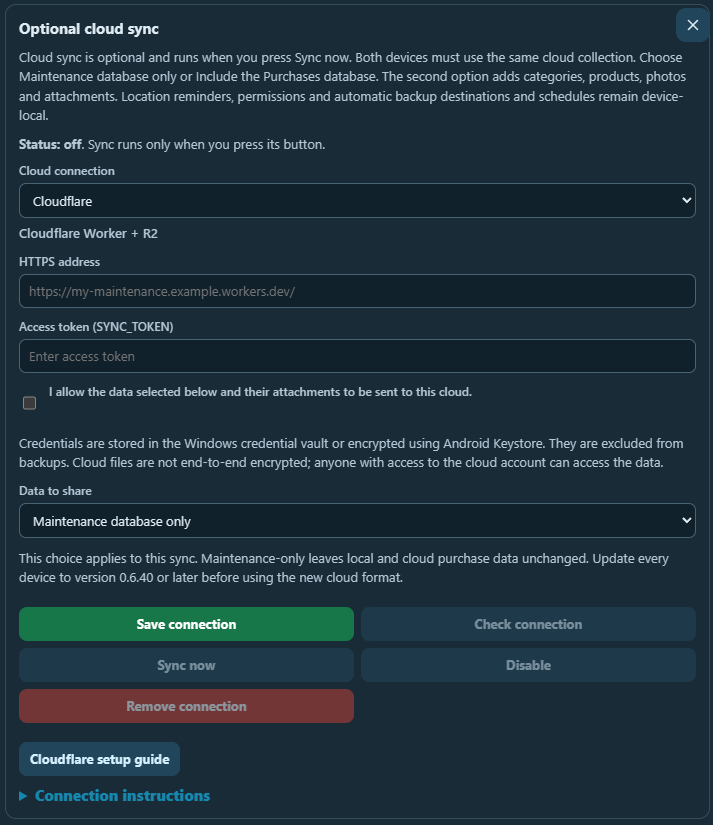
In My Maintenance open Settings → Optional cloud sync. Select Cloudflare. Paste the Worker HTTPS address and your SYNC_TOKEN key. Tick the consent box and press Save connection; wait for the saved confirmation. Press Check connection. Saving or checking alone does not merge your records. A successful check confirms access; the actual sync also checks safe writing.
09 / 11
Choose the scope and synchronize
Choose Maintenance database only, or Include the “Where bought” database to include categories, products, photos and documents from both modules. Press Sync now and wait for the result. If conflicts appear, compare both sides and deliberately choose the records to keep. Deletions also synchronize. Location reminders, permissions, backup schedules and connection keys remain device-specific.
10 / 11
Connect and check the second device
Configure the same Worker address and key on the second device, then use the same scope and press Sync now. Synchronize the first device again if both had independent changes. Check a sample asset, maintenance plan, product, photo and document on both devices. Maintenance-only sync leaves purchases unchanged. Keep both apps on the latest compatible version.
11 / 11
Keep independent backups
Cloud synchronization is not a backup: a deletion can reach every connected device. Keep automatic local backups and copy important backups to another safe location. Switching cloud sync off keeps local data. Removing a connection removes the key from that device, not the shared cloud files. To revoke a leaked key, replace SYNC_TOKEN in Cloudflare and update every device.
If something goes wrong
Unauthorized / 401
Check that the app key exactly matches the Worker secret SYNC_TOKEN, without extra spaces. Confirm that Type is Secret and deploy the change. Unauthorized in a normal browser with no key is expected.
Missing binding / server error
Check the exact binding name MAINTENANCE, the selected private R2 bucket, the complete Worker code and the latest deployment. The service does not use a D1 database.
Connection succeeds but sync fails
Read the app’s full error. Check R2 availability and quota, attachment limits and that both apps use a compatible version. A connection check alone does not prove that a later write can succeed. Keep the error and your backup; do not erase the app data.
A photo or document is missing
Confirm that you chose the scope including Where bought when checking purchase files. Open the original attachment on the sending device. Sync cannot recreate missing local bytes. Do not delete the whole record to repair one file.
Official Cloudflare instructions and current prices
Screenshots captured from the Cloudflare dashboard on 25–26 October 2026. Cloudflare may change labels or move controls. Use the field names and values in these steps if your layout differs.